
Why Keeping PHP Up-To-Date Is Important
Would you like your WordPress site to run faster? Is the security of your website important to you? Don’t forget to check your site’s PHP version! PHP is the programming language that WordPress is built with, and how it functions greatly impacts your site’s performance. That’s why updating the PHP version is of paramount importance!
Improve your site by updating the PHP version:
- Faster and More Efficient WordPress: Newer PHP versions simply run more efficiently than older ones. This means faster loading times and a better user experience for your site’s visitors.
- Better Security: Your site’s security is improved when you use a PHP version that receives regular security updates.
- New Features: New PHP versions include new features and enhancements that can benefit your site’s functionality.
As PHP is developed and a new version is released, the underlying code changes. Different PHP versions differ from each other and function slightly differently. For example, the latest WordPress core, plugins, or themes may not be compatible with older PHP versions.
When you update PHP, compatibility with the WordPress core, themes, and plugins improves. This reduces the possibility of errors, makes your site more stable, and ensures that WordPress updates run more smoothly in the future!
When PHP is up-to-date, potential issues are easier to resolve because developers focus on supporting the newest versions. By updating PHP, you ensure the longest and most stable website lifespan.

Outdated PHP is a Security Risk
Each PHP version has its own lifecycle, which begins upon its release and ends when support for that specific PHP version is discontinued. Older PHP versions are no longer actively developed, meaning that they’ve reached their end-of-life: if security vulnerabilities are found, no further fixes will be released.
An unpatched vulnerability in the PHP code can leave your site exposed to security threats. A potential attacker could install malware, steal user data, or take control of the entire website, to name a few risks.
Fortunately, WordPress will let you know if you’re running an old version: a warning will be visible in the dashboard (wp-admin). This information is also available in the Seravo Plugin.

Example of a PHP Vulnerability
Here is an example of how outdated PHP can lead to a data security breach on your site. Let’s imagine that your WordPress site is using PHP version 5.6, which reached end-of-life on December 31, 2018. Consequently, no security updates have been made to that version since then. Let’s imagine that a critical vulnerability is still discovered, which allows Remote Code Execution (RCE).
Attack: A hacker sends a specially crafted request to your site that exploits this vulnerability.
Consequence: Because the PHP version is no longer updated, the attacker is able to execute their own code on your server. For example, the attacker can:
- Install a backdoor to gain permanent access to your site.
- Upload malware or spam scripts to the site.
- Modify or even delete your site’s database.
By updating to a newer PHP version, you would ensure that this vulnerability would not have been exploitable by the attacker.
How to Upgrade PHP at Seravo
- Choose a PHP version to upgrade to
- Test compatibility with the Seravo Plugin
- Test changes in the shadow (staging environment)
- Make changes fix broken code, if necessary
- Deploy the new PHP version
1. Choose the PHP Version
In general, using a newer PHP version is always better. However, the absolute latest version isn’t always the best: it always takes some time before WordPress plugins and themes are developed to support the newer PHP version. At the moment, we recommend using at least PHP 8.1.
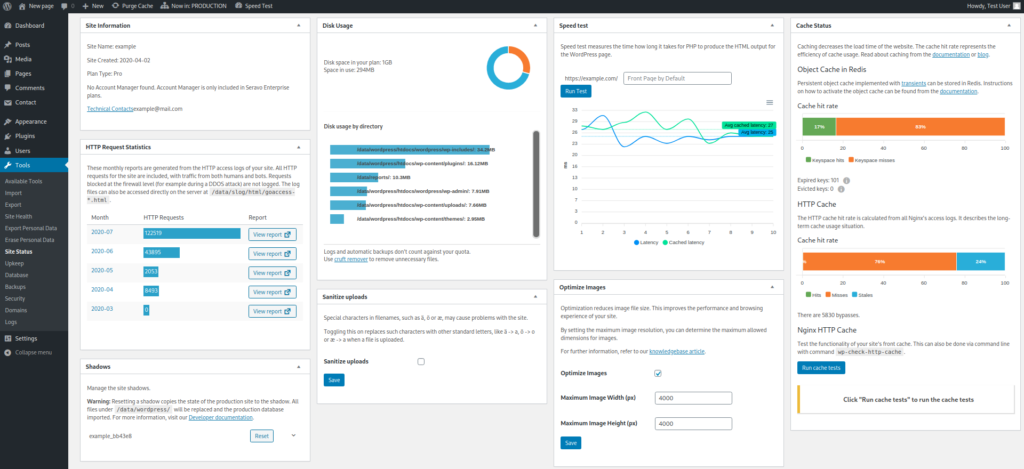
Check which PHP version your site is currently using. You can see the enabled PHP version in the information provided by the Seravo Plugin, or alternatively, directly from the command line:
$ wp-check-php-versionThe Seravo Plugin is preinstalled on all sites in Seravo’s premium hosting for WordPress, and activated by default. Seravo Plugin can show you lots of information about your site, conveniently within the WordPress dashboard.
2. Test PHP Compatibility with Seravo Plugin
Before upgrading PHP, it’s a good idea to check the new version’s compatibility with the theme and plugins used by the site. If not, errors may occur on your site, or in the worst case, your site might stop working entirely.
Seravo also provides a tool for testing PHP version compatibility: you can find it in the Seravo Plugin. Just log into your site and navigate to the menu Tools > Upkeep.
You can also try testing PHP version compatibility directly from the command line:
$ wp-check-php-compatibilityThe command returns information about which parts of the site or which pieces of code are incompatible with the new PHP version.
3. Test Changes in Staging
Once you have performed a compatibility check, it is a good idea to test the changes in a shadow (staging environment), if your WordPress hosting plan includes one. A shadow is a copy of your WordPress site, mimicking the production environment as closely as possible. Read more in the Seravo Knowledge Base.
All enabled shadow environments for your site are listed in Seravo Plugin (Tools > Site Status). If no shadows have yet been activated for your site but your plan includes one, you can enable it by contacting our customer service, who’ll set one up for you in no time!
4. Make Fixes When Needed
You can update your site’s PHP yourself at any time. If something goes wrong, it is advisable to restore the previous PHP version. Seravo’s customer service can help you restore the PHP version if you are unable to do so using the command line.
Sometimes errors require fixes and changes to the site’s code. However, it is a good idea to review all the plugins on your site, and disable any unnecessary or outdated ones.
5. Enable New PHP in Production
Enable the new PHP version in your website’s production environment. Double-check that everything is working properly!
Need Help? Get in Touch With Seravo
Did an error occur when you updated the PHP? No worries! In Seravo’s hosting, your WordPress site can be fully restored at any time. Changing the PHP version does not usually cause any damage to your site’s data, so you can freely try out different versions. However, help is near in case you need it.
It’s worth keeping in mind that sometimes the site can only be restored via the command line if an error occurs on the site and you cannot access the wp-admin dashboard. In this case, Seravo’s WordPress experts can restore the site, free of charge. We back up your entire site automatically once a day.
We do not force PHP upgrades on your site. Such forced updates carry the risk of breaking some of the site’s functionality – or, in the worst case, causing the site to crash altogether.
For this reason, it is essential that all PHP updates are tested and monitored. PHP version updates are therefore never included in our plans.
PHP Upgrades as a Service
If you order an upgrade to your site’s PHP from Seravo as an additional expert service, our WordPress experts will…
When updating your website’s PHP version, our WordPress experts will review the following points as part of the expert work ordered as an additional service:
- Check PHP version compatibility and take care of updating it
- Review and take care of other updates on your site
- WordPress core
- Themes
- Plugins
- Do a website integrity check
Be sure to check out all our available additional services. Simply get in touch with us by email (help@seravo.com), or use this form for ordering!
PHP Version End-of-Life at Seravo
All PHP versions available on our service and their expiration dates can be found in the Seravo knowledge base. There you will also find other technical instructions for familiarizing yourself with our service and using it.
PHP 7.4 will be unavailable at Seravo as of December 31, 2025.
In Seravo’s hosting for WordPress, PHP 7.4 will be removed from the selection of available PHP versions on December 31, 2025. This means that PHP 7.4 will no longer be available to Seravo customers after that date. Make sure to take care of the update before this date!
Learn More
- PHP (Wikipedia) – https://en.wikipedia.org/wiki/PHP
- PHP.net, official website – https://www.php.net/
- PHP versions and their availability at Seravo – https://help.seravo.com/en/articles/409537-available-php-versions